1、首先升级内核
2、安装wireguard
官网参考:https://www.wireguard.com/install/
由于已经升级了内核,所以选择 非标准内核安装
yum install https://dl.fedoraproject.org/pub/epel/epel-release-latest-7.noarch.rpm

curl -o /etc/yum.repos.d/jdoss-wireguard-epel-7.repo https://copr.fedorainfracloud.org/coprs/jdoss/wireguard/repo/epel-7/jdoss-wireguard-epel-7.repo

yum install wireguard-dkms wireguard-tools
3、配置wireguard
3.1 服务端生成秘钥对
① 开启ipv4流量转发:
echo "net.ipv4.ip_forward = 1" >> /etc/sysctl.conf
sysctl -p
② 创建并进入WireGuard文件夹:
mkdir -p /etc/wireguard && chmod 0777 /etc/wireguard
cd /etc/wireguard
umask 077
③ 生成服务器和客户端密钥对:
# 作为服务端使用时
wg genkey | tee server_privatekey | wg pubkey > server_publickey

# 作为客户端使用时
wg genkey | tee client_privatekey | wg pubkey > client_publickey
3.2 配置文件生成
生成的配置文件路径:/etc/wireguard/wg0.conf,命令如下:
3.2.1 服务端配置:
echo "
[Interface]
PrivateKey = $(cat server_privatekey) # 填写本机的 privatekey 内容
Address = 10.0.8.1/24
PostUp   = iptables -A FORWARD -i wg0 -j ACCEPT; iptables -A FORWARD -o wg0 -j ACCEPT; iptables -t nat -A POSTROUTING -o eth0 -j MASQUERADE
PostDown = iptables -D FORWARD -i wg0 -j ACCEPT; iptables -D FORWARD -o wg0 -j ACCEPT; iptables -t nat -D POSTROUTING -o eth0 -j MASQUERADE
ListenPort = 50814                    # 注意该端口是UDP端口
DNS = 8.8.8.8
MTU = 1420

[Peer]
PublicKey =  $(cat client_publickey)  # 填写对应客户端的 publickey 内容
AllowedIPs = 10.0.8.10/24 " > wg0.conf
服务端 还需开放 ListenPort = 50814 的端口
# 配置服务端 开机自启动
systemctl enable wg-quick@wg0

# 服务端 启动
systemctl start wg-quick@wg0

# 服务端 停止
systemctl stop wg-quick@wg0

# 服务端 重启
systemctl restart wg-quick@wg0
查看wireguard服务端运行状态命令:
wg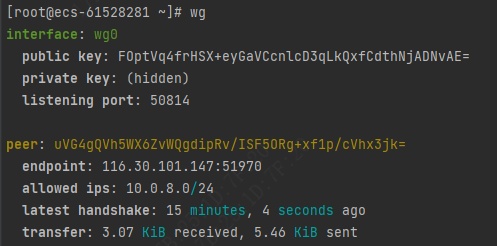
3.2.2 客户端配置:
echo "
[Interface]
PrivateKey = $(cat client_privatekey)  # 填写本机的privatekey 内容
Address = 10.0.8.10/24                 # 分配给 客户端的 虚拟ip
DNS = 8.8.8.8
MTU = 1420

[Peer]
PublicKey = $(cat server_publickey)    # 填写服务端的 publickey 内容
Endpoint = server公网的IP:50814
# AllowedIPs = 0.0.0.0/0, ::0/0        # 这里表示全部流量代理
AllowedIPs = 10.0.8.0/24               # 这里表示只代理 10.0.8.0/24 段 的流量
PersistentKeepalive = 25 " > client.conf
客户端命令:
# 配置客户端 开机自启动
systemctl enable wg-quick@client

# 客户端启动
systemctl start wg-quick@client


# 客户端停止
systemctl stop wg-quick@client


# 客户端重启
systemctl restart wg-quick@client
3.3 测试是否连接
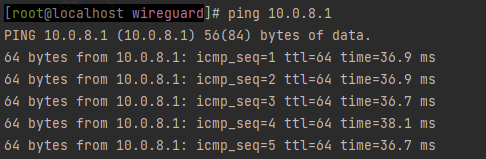
3.3.1 在 客户端 ping 10.0.8.1
3.3.2 在 服务端 ping 10.0.8.10
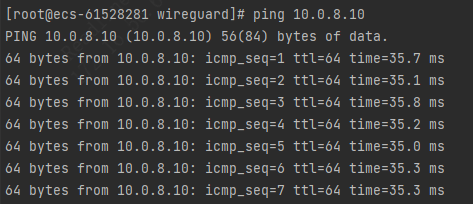
到此 wireguard 搭建成功
作者:admin 创建时间:2023-02-13 09:50
最后编辑:admin 更新时间:2023-02-13 14:40
最后编辑:admin 更新时间:2023-02-13 14:40